|
|
|
 |
 |
|
|
|
Authoring and Publishing for Print, Online, Desktop and Mobile Documentation
MadCap Flare is the professional content authoring tool used by technical writers and documentation specialists to create, manage, and publish content for both print and online documentation. Whether used to create content for complex digital print publishing (PDF) or online Help systems (WebHelp and WebHelp Mobile), MadCap Flare provides a robust authoring and publishing solution for your professional technical communication needs.
"I have been a Technical Writer for over 20 years now, and Flare is the best Help Authoring Tool that I have used."
Greg Birkenbeuel | TENG
"The mobile target is styled like an iPhone app, and is a great way for me to deliver content to our customers who are on the go, but who need access to our Help content"
Paul Pehrson | Doc Guy Training
"Thank God for the developers at MadCap for providing the most agile XML-based authoring tool on the planet."
Jim Corbin | BIO-key
"MadCap Flare is giving us state-of-the-art capabilities while offering the lowest cost of ownership of any authoring software we've seen on the market"
Harold Gross | Microsoft Health Solutions Group
"Flare is already the best information development tool out there, and now it's the leader of the pack in accessibility."
Eddie VanArsdall | VanArsdall InfoDesign
Leverage Existing Content
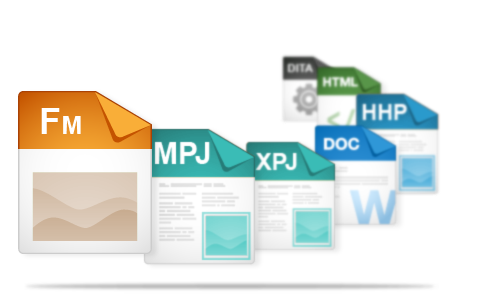
Like many authors and organizations, you need to leverage hundreds and even thousands of existing documents created using other products. Flare's import
process makes it easy to migrate a wide range of file types into your new XML-based authoring environment. Migrate legacy content from Adobe® RoboHelp™, Adobe®
FrameMaker®, Microsoft® Word™, .CHM, DITA and many more. No coding knowledge or special skills required.

To get the most out of your existing content and to make the transition as smooth as possible, MadCap has created support guides to help users get started.
Understanding the Difference:
Topic-based Authoring with MadCap Flare
MadCap Flare utilizes topic-based authoring, rather than the chapter-based format of FrameMaker®. A Flare project typically will have more topics than chapters -- and understanding this difference should help you during import. If you are working with legacy files you did not author, it will be worth it to spend some time to familiarize yourself with the project.
Importing Best Practices
More than 30 best-practice conversion topics are discussed in the support guide -- covering everything from TOCs to graphics to style sheets. Of course, should you encounter any difficulties during your transition, you can contact one of our award-winning MadCap Technical Support team members to walk you through the process.
Best Practice: Importing Workflow

Authoring and Content Reuse
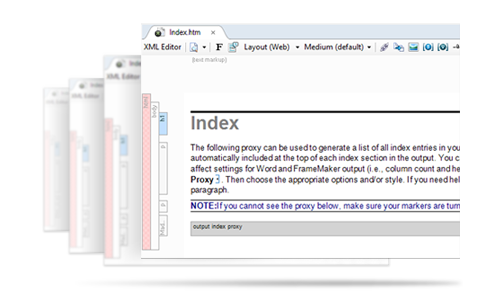
Using Flare's patented, visual XML editor, authors can enjoy the benefits of XML (extensible markup language) without any need for XML knowledge. With XML,
content is separate from formatting and therefore allows the author to focus on content creation. The authoring process is further enhanced and streamlined using
advanced topic-based authoring features that further allow for maximum content reuse and publishing to multiple deliverables and outputs.
- Content changes are made universally from a single source and updated across projects for consistent, accurate documentation
- Authors can focus on creating content instead of constantly formatting and reformatting
- Projects and content are accurate and consistent across multiple deliverables and completed faster with far less content duplication
- Create and design content efficiently using Flare's unique structure bars
- Drag and drop content for quick and easy editing
- Easy SME content contribution and review with MadCap Contributor
Edit content in Flare in two different layout modes —Web for traditional layout for online use, and Print for page layout with margins, headers, footers, etc. used for print.

Multi-channel Publishing
Publish content to a variety of formats including cross-browser, cross-platform online Help, printed documents such as PDF and Word™, and online Help optimized for mobile devices.
Print
PDF
XPS
Adobe® FrameMaker®
Microsoft® Word™
DOCX
XHTML
Online
WebHelp
WebHelp Plus
Desktop
HTML Help
DotNet Help
Adobe® FrameMaker®
DITA
Adobe® AIR
Mobile
iPhone
iPad
Microsoft® Mobile
PALM Web OS
Blackberry
Android
Project Management and Collaboration
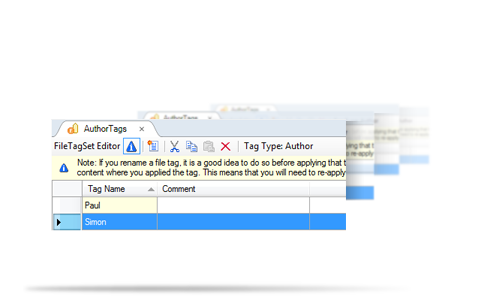
Flare makes it easier to manage complex projects with advanced tracking and reporting tools. File Tagging allows you to assign tags to topics, files, even folders, within Flare. Assign tags for authors or milestones and generate reports based off of the assigned tags.
Enjoy close collaboration between authors, subject matter experts and other content contributors with Flare's built-in topic review and contribution features.
SMEs can utilize MadCap Contributor to make changes and annotations:
- Reviews: Email topics for feedback and changes directly from within Flare or leverage Flare and Contributor's external resources and SharePoint integration to send review packages.
- Contributions: SMEs and other content contributors can create new documents and files for inclusion into your documentation
Content Management
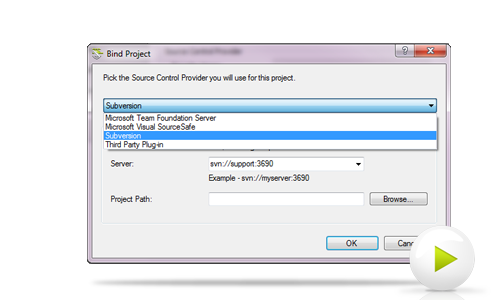
Flare allows for full content management capabilities with direct integration and access to Microsoft SharePoint. In addition, Subversion, Microsoft Team
Foundation and Visual Source Safe are directly integrated and accessed from Flare, enabling built-in source control
for efficient team authoring and collaboration. Not using source control? Flare's external resources feature allows files and folders to be mapped and shared
among any number of projects or users.
Click Image to Play Video | Sharepoint, Subversion & ShareResources
- Microsoft SharePoint Integration: Connect directly to SharePoint servers within Flare to access and edit files from any of your projects.
- Native Source Control Integration for Apache Subversion, Team Foundation Server and Visual SourceSafe: Native source control support means you no longer need any third-party plug-in to take advantage of integrated source control within Flare.
- External Resources: Don't have any content management or source control. No problem- A new external resources window allows you to maintain groups of external files that you want to share among Flare projects and authors.
- Mappings can be made to any local, network, or SharePoint resource
- Plus, integration with all industry source control systems that use the MS SCC API interface
Cross-product Integration
Tight product integration across the entire MadCap Software suite of products allows for efficient content creation and streamlined workflow.
- Content contribution and review by subject matter experts and managers with MadCap Contributor
- User feedback and analytics within your online and desktop-based documentation with MadCap Feedback
- Scanning and analysis to improve your projects with MadCap Analyzer
- Translation and localization with MadCap Lingo
- Fully interactive demos, tutorials and software simulations with MadCap Mimic
- Screen capturing and editing with MadCap Capture
Translation and Localization
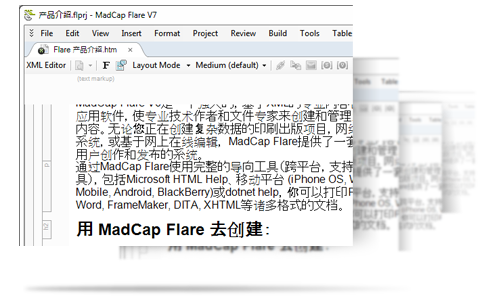
Language support in Flare is unmatched. Not only does it support Unicode language characters, but also double-byte Asian languages and Eastern European languages.
Plus, advanced single-sourcing features make translation more seamless in Flare, such as easy access to content, snippets, variables and more.
Plus, localized interface for DotNet Help, WebHelp, WebHelp Plus, WebHelp AIR, and WebHelp Mobile outputs.
- Unicode support for all left-to-right languages
- Integration with the translation environment tool, MadCap Lingo
- Multiple interface languages in one product
Accessibility
Flare PDF and WebHelp outputs have been improved to help you make your documentation more accessible to users who have visual and hearing
impairments, and is therefore compliant with standards such as Section 508 and WCAG (Web Content Accessibility Guidelines).
Click Image to Play Video | Accessibility Improvements in Flare
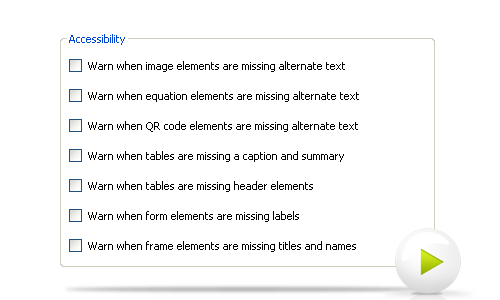
A new Warnings tab appears in the Target Editor where you can enable error messages to appear when your output fails to include information that makes it accessible.
You can receive warnings when:
- Image elements are missing alternate text
- Equation elements are missing alternate text
- QR code elements are missing alternate text
- Tables are missing captions and summaries
- Tables are missing header elements
- Form elements are missing labels
- Frame elements are missing titles and names
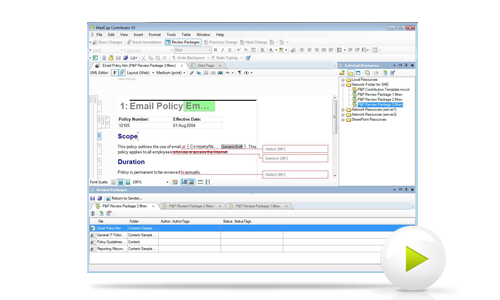
Contribution and Review
Tight integration with Flare and MadCap Contributor make the content contribution and review process easy and efficient. Authors can
utilize the expertise of Subject Matter Experts (SME's) and content contributors outside the document management team that can edit and
review topics, track changes, make annotations, and update content with a simple, easy-to-use interface. Track changes in Flare and MadCap
Contributor now make is easier to manage the contribution and review process.
Click Image to Play Video | Track Changes and Review
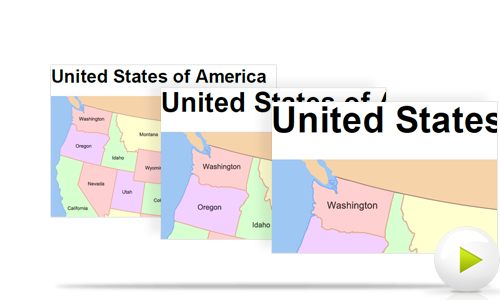
Vector Graphic Support
Support for vector graphics allows for crisp, high-resolution graphics and images in printed documents (.EPS, .PS and .SVG file formats).
Click Image to Play Video | Accessibility Improvements in Flare
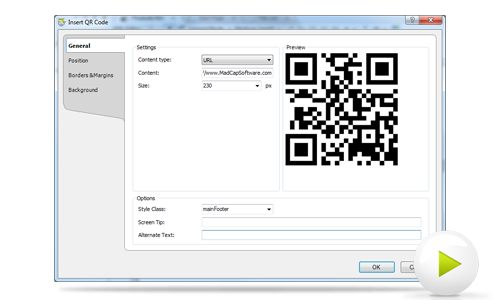
QR Codes: Bridge the Gap Between Print and Interactive Online Content
In an online and searchable document, it is easy to include hyperlinks, URLs, etc., for users to access more information, but how do you enable this from a print document? With QR codes, authors can empower their users in ways never before possible, by giving them access to more relevant, actionable and up to date content wherever and whenever they need it, directly from any print document.
A new Warnings tab appears in the Target Editor where you can enable error messages to appear when your output fails to include information that makes it accessible.
You can receive warnings when:
- Image elements are missing alternate text
- Equation elements are missing alternate text
- QR code elements are missing alternate text
- Tables are missing captions and summaries
- Tables are missing header elements
- Form elements are missing labels
- Frame elements are missing titles and names
Single-sourcing
Single-sourcing-to produce multiple results from one source-allows you to enjoy greater consistency, accuracy and delivery of your documentation by managing content from a single source. In Flare, you can make use of single-sourcing in many different ways:
Global Project Linking:
You can import content and project files contained in another Flare project, thus allowing you to maintain the information in one location but reuse it in any other project.
Multiple outputs from one project:
Flare allows you to generate output in a variety of online and print-based formats, creating as many different targets as you want from the same project.
Single-source images:
MadCap Capture, the screen capture and graphics editing application, contains many unique features that are especially useful for online documentation authors, including the ability to single-source images in Flare projects. For a single image, you can provide one group of settings for online output, and another group of settings for printed output.
Variables:
Variables are pre-set terms that you can use in your project over and over. They are stored in "variable sets," which can hold multiple variables. Flare provides you with an initial variable set, but you can add as many additional variable sets as you like. Variables are used for brief, non-formatted pieces of content (such as the name of your company's product or your company's phone number).
Style sheets:
Cascading style sheets (CSS files) can be used to control the look of your output. Style sheets can be applied to individual topics, or you can use a "master" style sheet, applying it to all files at the target level or project level.
Snippets:
Snippets are pre-set chunks of content that you can use in your project over and over. Snippets are used for longer pieces of content that you can format just as you would any other content in a topic. Insert tables, pictures, and whatever else can be included in a normal topic.
Snippet conditions:
Snippet conditions are condition tags that you can apply to content within snippets. Separate certain snippet content so that it displays in some topics or master pages but not in others. Whereas regular conditions are included or excluded at the target level, snippet conditions are included or excluded at the topic or master page level.
Mediums for topic styles:
Let's say you want one style setting (e.g., underline font) to be used for online output and another setting (e.g., do not underline font) to be used for printed output. You can use a medium in your style sheet to create different settings for the same style. When you apply a particular medium to a target, it will be used for that output.
Table print styles:
A table style sheet allows you to single-source your formatting by setting the properties in one place and reusing them wherever you insert tables in your project. But what if you want the tables in online output to look one way and the tables in your printed output to look another way? One solution is to insert two different tables (one for online output and another for print) throughout your project and then use condition tags on them. A better solution is to insert a single table at each location, using a special version of the table style for print-based output.
Condition tags:
You can apply condition tags at all levels in Flare-character, paragraph, file, and more.
Multi-channel Publishing
Flare allows for one-click publishing to multiple outputs by simply selecting your desired output or target. Publish content to a variety of
formats including cross-browser, cross-platform online Help, printed documents such as PDF and Word™, and online Help optimized for mobile devices.
You can use batch targets to generate and/or publish one or multiple targets in a batch from the user interface, perhaps scheduled to run at a specific time.
Print
Flare offers all of the advanced features you expect in a high-end, XML-based print publishing application such as:
- Complex auto-numbering for volumes, sections, paragraphs, and pages
- Complex page layouts including graphics, headers, footers, and multiple columns
- Full CSS support
- Multiple page layouts
- Multiple document outlines in one project provide as many outputs as you need
- Variables and snippets
- Dynamically adjust page numbers to next or previous, above or below, using smart crossreferences
- Enhanced JPEG compression and PDF Support
- Support for import and export of FrameMaker®, Microsoft Word, DITA, Plain HTML, XHTML and more
- Global Project Linking - share and update common elements across multiple projects
PDF:
Native PDF support and built-in PDF Engine allows for direct to PDF publishing from Flare. Short for "Portable Document Format," PDF is an open file format created by Adobe®. PDF files represent two-dimensional documents in a device-independent and resolution-independent fixed-layout document format.
XPS:
Microsoft's XML Paper Specification (XPS) is a document format with a markup language that is a subset of XAML for Windows Presentation Foundation. XPS is an alternative to Adobe®'s Portable Document Format (PDF).
Adobe® FrameMaker™:
Madcap Flare is the only authoring tool that allows for direct output to Adobe FrameMaker. This allows for full rouondtripping capabilities for those authors
that want to use Flare as there authoring environment while still using FrameMaker as a publishing engine.
For example, import FrameMaker documents into Flare, edit the content in Flare and then output back to FrameMaker for publishing. Flare can output content
to FrameMaker in any of the following formats:
- .BOOK FrameMaker's native book (or "document collection") file.
- .FM This is FrameMaker's native single document file.
- .PDF In addition to sending output directly to PDF (as described above), you can generate a PDF file automatically when building FrameMaker output.
Microsoft® Word ™:
Flare output can be exported to Microsoft Word in one of the following file formats.
- XML, DOC, DOCX
- XPS: In addition to sending output directly to XPS (as described above), you can generate an XPS file automatically
when building Word output. (You can do this by installing a free add-in download from Microsoft.)
- PDF: In addition to sending output directly to PDF (as described above), you can generate a PDF file automatically
when building Word output. Because Flare supports Microsoft Word 2003, 2007 and 2010, you can send Word output to PDF
format, even if you do not have the Adobe Distiller installed.
XHTML book:
XHTML is a browser-based output type that consolidates project content in an XML file. It can be viewed online or printed. The output appears as one long book, even if the project consists of hundreds of topics. You can view and print the XHTML output.
Online

WebHelp:
This is a Web-based Help format that can run on almost any browser or platform. Use WebHelp to create Help for the Internet or an intranet, as well as for desktop applications.
WebHelp Plus:
Identical to the regular WebHelp output, however, WebHelp Plus is designed to work on a Web server running Windows XP or Windows Server 2003, as well
as Microsoft® Internet Information Services (IIS), ASP.NET, and Microsoft® Indexing Service. The benefit of publishing WebHelp Plus output is that
you and your users can take advantage of some advanced features, including searching of non-XHTML content, faster server-side search, and automatic runtime
merging. With WebHelp Plus content from legacy documents such as Microsoft and PDF in your search results.
Desktop

HTML Help:
This is an HTML-based Help format that runs on Windows 32-bit platforms and requires Internet Explorer on the end users' systems. Use HTML Help to create Help for Windows desktop applications.
DotNet Help:
Developed by MadCap Software, DotNet Help was designed to include the best attributes of Microsoft® HTML Help and WebHelp, while filling the holes left behind by those formats. DotNet Help is designed specifically to support Visual Studio 2005 developers. It includes a freely redistributable viewer (MadCap Help Viewer), as well as components for the Visual Studio 2005 developer. These components can be dropped into your Flare project to facilitate context-sensitive Help, embedded Help, and features such as automated search string communication between the application and the DotNet Help documentation.
DITA:
Darwin Information Typing Architecture (DITA) file content is supported in Flare. DITA is an XML-based markup language with its own schema for authoring, producing, and delivering technical information. It is a standard of the Organization for the Advancement of Structured Information Standards (OASIS), and it consists of a set of design principles for creating "information-typed" modules at a topic level and for using that content in various delivery modes. In Flare, you can generate output that produces DITA files.
WebHelp AIR:
WebHelp AIR uses direct integration with Adobe® AIR, which is designed to bring Web-related content to a desktop environment by taking Web files and incorporating them into a single file to be opened locally, rather than from a server.
Mobile

Flare's mobile output supports multiple platforms, including the iPhone, Windows Mobile, Android, Palm Web OS, and BlackBerry.
The new mobile output has been created to optimize both the use of a small screen and potential performance issues as a result of
low bandwidth connections. Also included is a generic mobile simulator so authors can test on PCs if a physical mobile test device is not present.
WebHelp Mobile:
This is an output type that lets you deploy Web-based, XHTML output to mobile devices. WebHelp Mobile maintains an easy and intuitive interface that fits on a very small screen. The Home page in WebHelp Mobile output contains navigation links to access the various panes that you can include: TOC, Index, Glossary, Search, Favorites.
MadCap Flare is used by thousands of companies across dozens of industries. Learn more about its versatile functionality and features with these industry-specific case studies.
More Case Studies
Uses Hosted MadCap Feedback Service and Flare to Optimize Help and Reduce "How-To" Inquiries by up to 30 Percent
More Case Studies
Uses MadCap Flare to Deliver Best-in-Class Online and Print Documentation
More Case Studies
Microsoft Uses Flare to Streamline Delivery of Online and Print Documentation
More Case Studies
Instructors Use MadCap Flare to Teach Software Documentation Best Practices
More Case Studies
Uses MadCap Flare to Reduce Production Time by 50 Percent and Enhance Customer Experience
More Case Studies
World's Largest Health Club Chain Creates Online Documentation For Global Employees
HTML5 Output
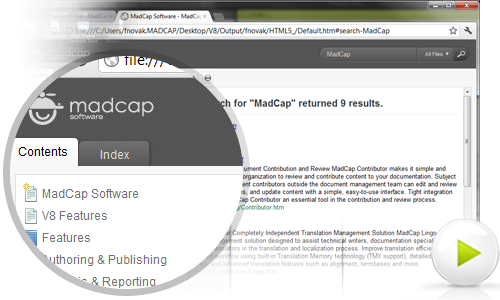
A new frameless HTML5 output is search engine-friendly, offers Google-style search results and display, and includes full topic URLS for better link sharing. Plus, you can add custom metadata to topics for improved search results.
Click Image to Play Video | HTML5 Output
New HTML5 Output Features
- Google-style search results and display
- Frameless output for improved search engine crawling and ranking
- Automated XML sitemap generation
- Improved accessibility with screen readers (Section 508 and WCAG)
- Topic-level metadata tag descriptions
- Customizable design to match any existing website or portal
- Topic URL paths dispayed in browser for easy sharing
Sleek New UI
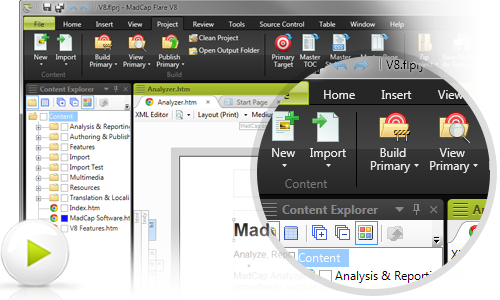
A new user interface has been completely redesigned for enhanced authoring and ease of use, featuring ribbons, a Quick Access Toolbar, a new Getting Started Wizard and more.
Click Image to Play Video | Sleek New UI
New Ribbon UI Features
- Multiple ribbon themes (including classic non-ribbon)
- Quick Access Toolbar for personalized buttons
- Keyboard shortcuts for any menu function
- Vastly improved usability and authoring efficiency
- Improved floating and docking for multiple documents and windows
Mobile Publishing, Now including ePub Output
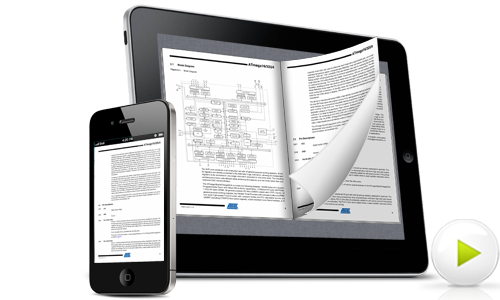
Ensure your content reaches your audience on any mobile device. A new ePub output for eBooks, combined with WebHelp Mobile, makes Flare the ultimate mobile publishing tool.
Click Image to Play Video | Mobile Publishing, Now including ePub Output
New ePub Output Features
- Create digital books, user guides and manuals
- Publish beautiful, cross-platform, open eBooks with CSS-based design
- ePub best for users without web connectivity and on the go (offline)
- Browser-based WebHelp Mobile best for live, up-to-date content (online)
High-end Print Publishing
New print features and enhancements make high-end print publishing better than ever.
New Print Enhancements
New CSS extensions offer improved printed output:
- Print TOC improvements
-
- Control the distance between the end of a TOC entry and the start of a leader
- Control the distance between the end of a leader and the page number
- Suppress page numbers from top-level entries
- Set hanging indents for multi-lined entries
- Printed tables that break across pages: Ensure captions appear at the top of each page, or add supplemental text such as �EContinued)�Efollowing the caption on subsequent pages.
- Print Index improvements (XPS and PDF): CSS print extensions enable you to display the entry, two non-breaking spaces, and the number. Multiple numbers are separated by commas, and number ranges are separated by a dash (conforms to universal standards for a back-of-the-book index). Plus add hanging indents for multi-lined entries.
- Sort Indexes using “Sort as�E
-
- Assign an index entry to sort as another term in the index. Have appear under “h�Ein the index.
PDF Support and Integration
Pre-production options include:
- Named Destination Support (PDF and FrameMaker)
-
- Insert named destinations in topics using Flare, rather than Acrobat
- Set up a Flare hyperlink that links to an existing named destination in a PDF file
- Convert Flare bookmarks to named destinations when publishing to PDF
- Improved Page Breaking
-
- Tables, images and other content break better across multiple pages
- Ability to have top margins collapsed when elements appear on the top of a page
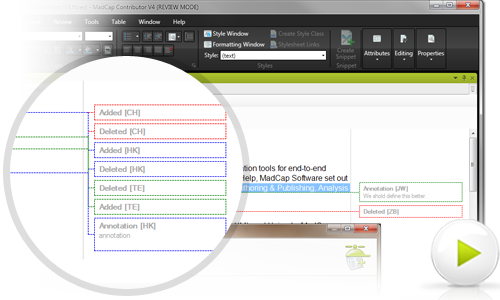
Free Review for Managers and Subject Matter Experts
Now your managers and subject matter experts can enjoy free review using annotation. Free review and annotation now included for subject matter experts and managers.
Click Image to Play Video | Free Review for Managers and Subject Matter Experts
Free Review and Workflow Improvements
- Send for Review from the TOC (includes the TOC in the review package)
- Review packages can now be opened in Flare for review
- MadCap Contributor: Free review mode
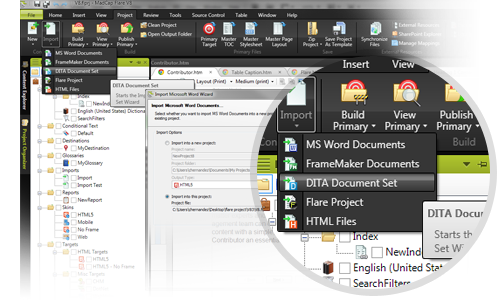
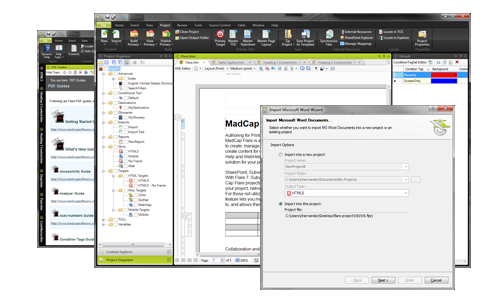
New Import Wizard for Word®, FrameMaker® and DITA Files
Importing existing content from other programs and sources has never been easier. A new import wizard walks you through the steps of importing large documents to ensure you import the desired document content and attributes.
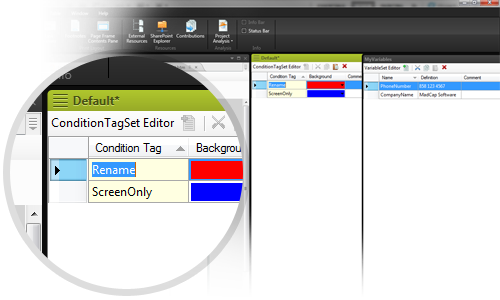
Improved Workflow for Variables, Conditions and File Tags
A new workflow allows variables, condition tags and file tags to be renamed and updated, without breaking the associations.
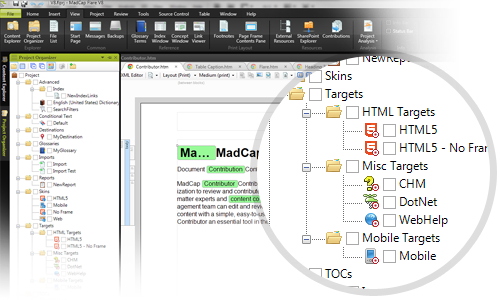
Project Organizer Now Featuring Subfolders
Better organize your TOCs, Targets, File Tag Sets, and other files found in the Project Organizer by adding, displaying and storing content in sub-folders.
PLUS
DITA 1.2 Support, Dozens
of Usability Improvements, New Licensing Options, and Much More!
View "What's New in Flare 8" to see a full list of new features.
Other New Authoring and Usability Enhancements
Auto Suggestion (formerly Intellisense) for variables, snippets, and more
Copy and paste from other applications into WYSIWYG
Enhanced table style editor
New text-to-table/table-to-text functionality
Enhanced track changes workflow
New table row sorting and merging
True CHM Import and Remote CHM Linking
Google Chrome Support
Preview of Web Output in multiple browsers
|
 |
|
 |